How to Integrate Leopard Courier with ClicknShip
Introduction
If you ship orders through Leopard Courier, connecting it to ClicknShip means you will never have to manually book a shipment again. Once the integration is set up, ClicknShip can book parcels, track deliveries, and manage your logistics — all from one place.
The good news? You do not need any technical knowledge to do this. The setup process is guided, step-by-step, and takes less than 5 minutes to complete. You will simply enter a couple of details from your Leopard Courier account, make one selection, and you are done.
Before You Begin
Make sure you have the following ready before you start:
- You are logged in to your ClicknShip account
- You have admin access (only admins can add courier integrations)
- You have your Leopard Courier API Password and API Key — you can find these in your Leopard Courier merchant portal. If you are not sure where to find them, contact your Leopard account manager. Here is screenshot of Leopard Courier merchant portal or ecom to get API Password and API Key, here is how you can get these credentials
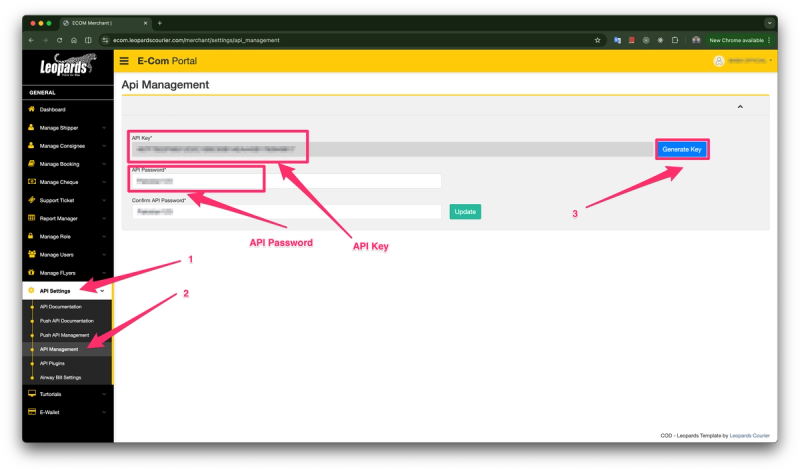
Tip: Keep your Leopard merchant portal open in another browser tab so you can copy your credentials easily.
Step 1: Open the Logistics Settings
From your ClicknShip dashboard, look at the left-hand sidebar menu. Scroll down until you see Logistics or Couriers and click on it.
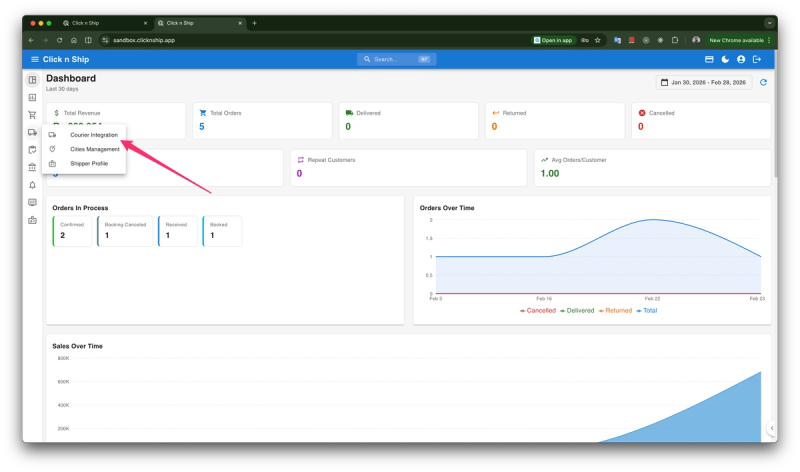
This will take you to the courier management section where all your connected and available couriers are listed.
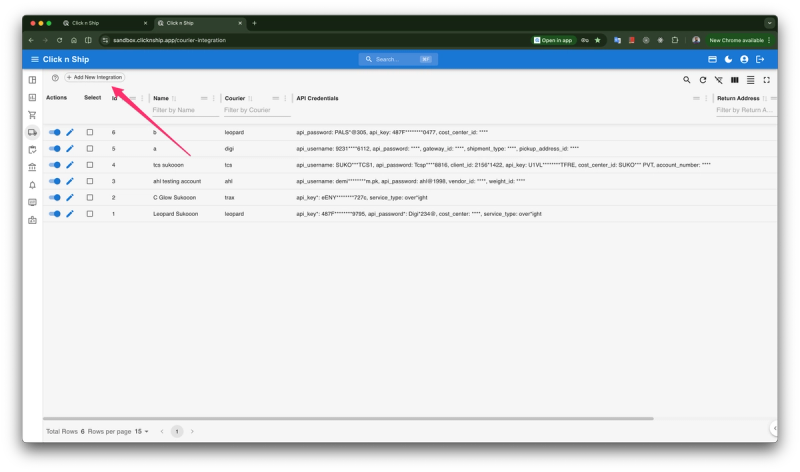
Why this step matters: This is the central place where all courier connections are managed. Everything to do with shipping partners lives here.
Common mistake to avoid: Do not look under Settings at first — the Couriers section has its own dedicated menu item in the sidebar.
Step 2: Find Leopard Courier in the List
Once you are on the Couriers page and click on the Add courier integration, you will see a list of available courier partners. Look for the Leopard Courier card and click Connect or Set Up next to it to begin the integration.
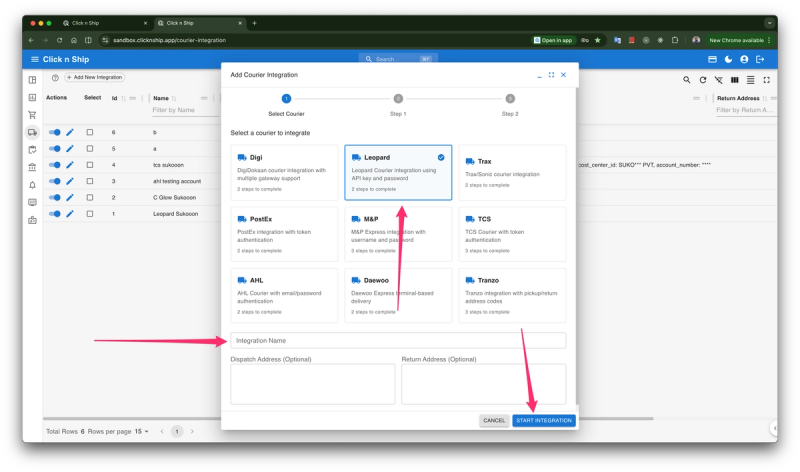
Why this step matters: ClicknShip supports multiple couriers. Selecting Leopard here tells the system that you want to set up this specific courier for your account.
Common mistake to avoid: Make sure you are clicking on Leopard specifically and not another courier with a similar name. Double-check the name before clicking.
Step 3: Enter Your Leopard API Credentials
A form will appear asking for two pieces of information:
- API Password — a unique password from your Leopard merchant account
- API Key — a unique code that identifies your Leopard account
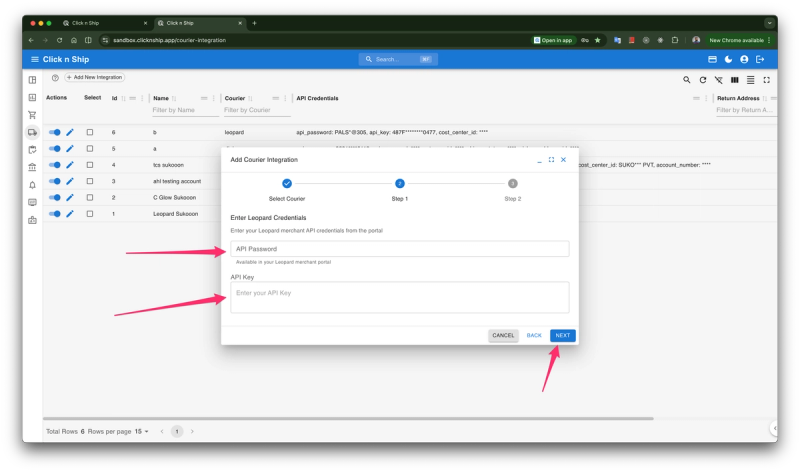
Carefully copy and paste these from your Leopard merchant portal into the matching fields. Double-check that there are no extra spaces before or after the values. When both fields are filled in, click Next or Continue.
Why this step matters: These credentials verify that your ClicknShip account is authorized to book shipments on behalf of your Leopard account.
Common mistake to avoid: Do not type the credentials manually if you can avoid it — copying and pasting is safer and prevents typos. Also make sure the API Key and API Password are not swapped.
Step 4: Select Your Origin City
After your credentials are verified, the next screen will ask you to select your origin city — this is the city your shipments will be dispatched from.
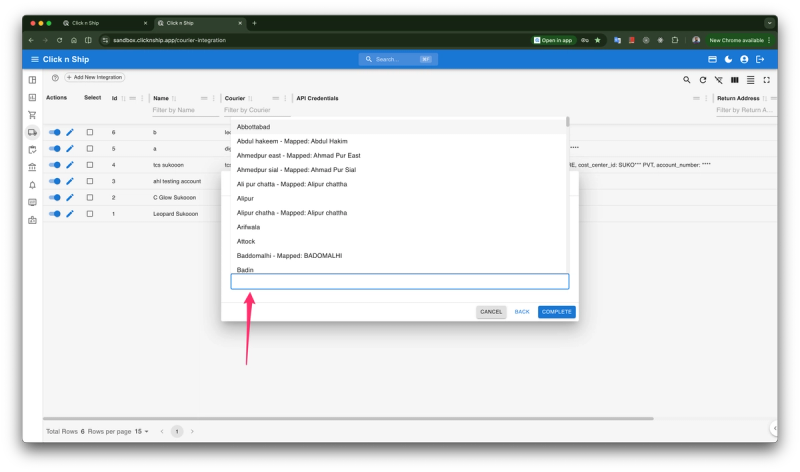
A dropdown menu will appear with a list of cities. Click on the dropdown and choose the city where your warehouse or dispatch location is based. Once selected, click Complete to complete the setup.
Why this step matters: Leopard uses your origin city to calculate shipping routes and assign the correct pickup zone to your account.
Common mistake to avoid: If your business dispatches from multiple cities, choose your main or primary dispatch location here. You can always update this later.
Step 5: Confirm the Integration is Complete
Once you click Finish, a confirmation screen will appear letting you know that Leopard Courier has been successfully connected to your ClicknShip account.
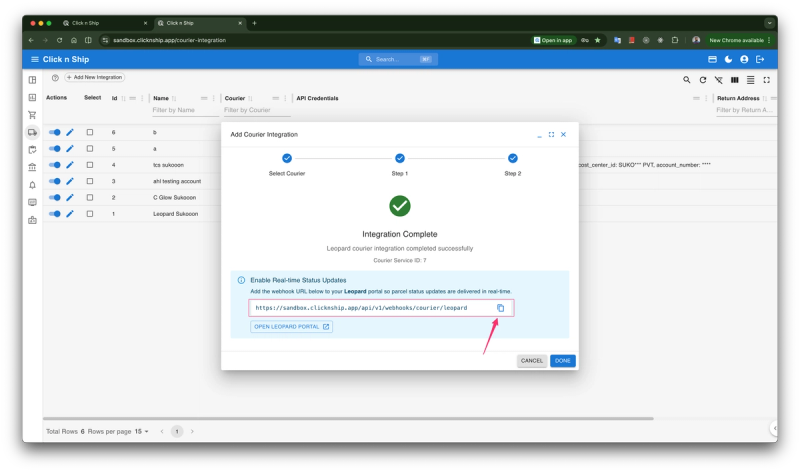
You see a message about a Webhook URL. This enables real-time tracking updates.
Click the copy button to copy the Webhook URL and open you Leopard Push API setting.
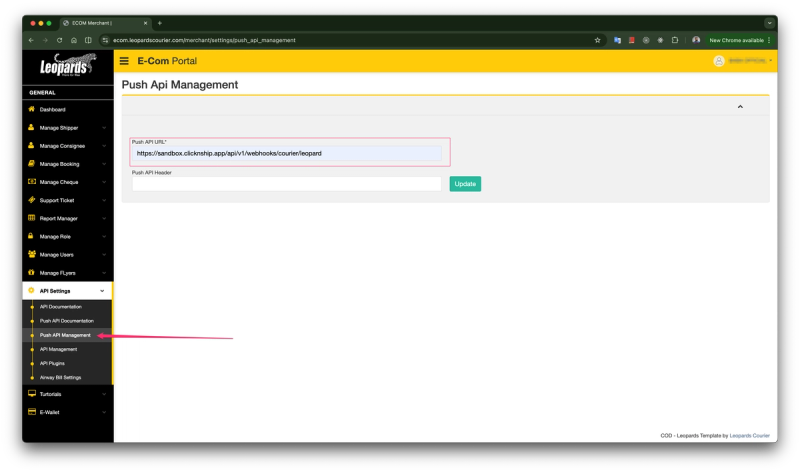
Past the copied Webhook URL in the marked fields and click on Update button. You will see a confirmation message, confirm it.
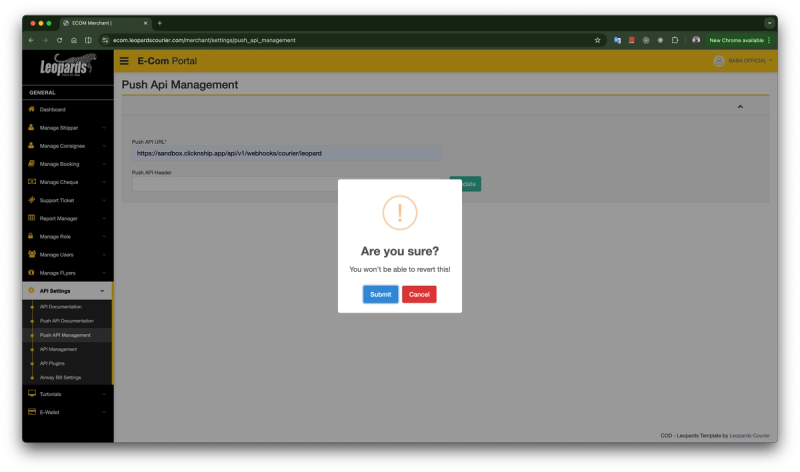
You can share it with your Leopard account manager to enable automatic status updates. If you are unsure.
How to Confirm It Worked
After completing the setup, here is how you can confirm Leopard Courier is properly connected:
- Go back to the Couriers page in the sidebar
- Look for Leopard Courier in your list of connected couriers
- You should see a green Active badge or status next to it
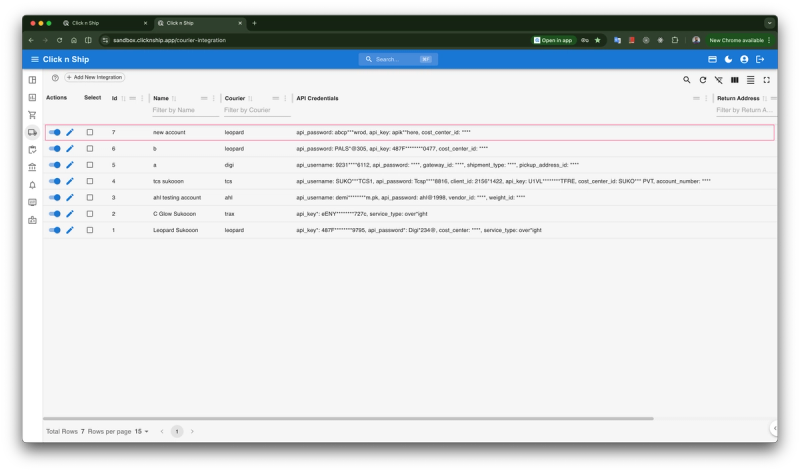
This means ClicknShip can now book Leopard shipments on your behalf whenever you process an order.